Settings
Click the gear icon in the top bar (between the sidebar toggle and the library / edit-pencil buttons) to open the Settings popup. Every toggle persists per-user across all places via plugin:SetSetting, scoped under a CommandRunner_* prefix.
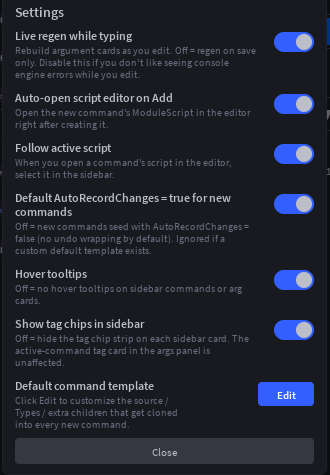
Toggles
All defaults are on. The plugin's existing behavior is the "everything on" state, so flipping nothing changes nothing.
Live regen while typing
Rebuilds your active command's argument cards and regenerates its Types.ArgumentResult block as you edit the source, debounced ~600ms after the last keystroke. When off, the same regen still happens, but only on save (Ctrl+S, or the save button while the command's script is the active editor tab).
Why you might turn this off: while you're editing, mid-stroke syntax errors in your script source are loaded by require, and Roblox Studio prints those parse errors to Output regardless of whether the plugin caught them. With live regen off, those errors stop until you save.
Auto-open script editor on Add
When you create a new command via the + button, the new ModuleScript opens in the script editor automatically. Off = the script gets created but the editor stays put. You can still open it later via the edit pencil.
Follow active script
When you open a command's ModuleScript directly in the script editor (e.g. via Explorer), the sidebar selects that command. Off = the sidebar leaves your current selection alone. Useful if you frequently jump between scripts that aren't CommandRunner commands and don't want the sidebar dancing around.
Default AutoRecordChanges = true for new commands
Controls the seeded source of brand-new commands:
- On (default): newly-created commands have no explicit
AutoRecordChangesfield, which falls through to the plugin's default oftrue, every Execute is wrapped in a single ChangeHistoryService recording. - Off: newly-created commands seed with an explicit
AutoRecordChanges = false,line, no undo wrapping by default.
Ignored when a custom default template exists (see below). When the template is in use, the template's source is the source of truth for what gets seeded.
Hover tooltips
Off = no hover tooltips anywhere in the widget (sidebar commands, argument cards, action buttons). The Description fields you write into your commands and arguments are still stored, just not surfaced via hover.
See tooltips & descriptions for what tooltips look like when on.
Show tag chips in sidebar
Off = the per-card tag chip strip on each sidebar entry hides immediately. Toggling re-renders all visible cards live, no widget reload.
The active-command tag card pinned to the top of the args panel is not affected, only the per-card preview chips in the sidebar. If you want a denser sidebar but still want to see the tags of the command you're working on, this is the toggle.
Default command template
A row at the bottom of the Settings popup with two buttons:
- Edit: creates
ServerStorage.CommandRunnerTemplate.Default(aModuleScriptwith a siblingTypes) if it doesn't already exist, then opens it in the script editor. Closes the Settings popup. - Reset: only visible when a template exists. Confirms via toast, then deletes the entire
CommandRunnerTemplatefolder. Future new commands fall back to the plugin's built-in seed.
Once a template exists, every new command is a :Clone() of Default, including its Types child and any other children you parent under Default. So you can:
- Customize the seed
Description,Runbody, orRunparameter types (e.g. fully typed(props: Types.Props, arguments: Types.ArgumentResult), partially typed(props: Types.Props, arguments), or no annotations at all). - Adjust the seed
Typessource. - Pre-tag every new command via
__ExtraTagson the template (it rides along on the clone). - Pre-bundle utility ModuleScripts as children of
Default, every new command gets its own copy of those utilities right out of the gate.
ServerStorage
└─ CommandRunnerTemplate            (folder, never appears in sidebar)
   └─ Default                       (ModuleScript, your seeded source)
      ├─ Types                      (ModuleScript, used to generate ArgumentResult)
      ├─ Utils                      (optional, your own helper module)
      └─ ...                        (any other children you want cloned in)
The template lives in ServerStorage, not ServerStorage.CommandRunnerScripts, so the sidebar's container listener never picks it up. It's invisible to the plugin's command list.
What carries over from template to new commands
Everything under the Default ModuleScript:
.Source, including any custom comments, imports, helper functions you wrote inside.- All descendant Instances (the
Typesscript, any extra children). - Attributes on
Defaultitself (including__ExtraTags,__ArgumentPresets,__HiddenArgsif you set them on the template).
The new command's Types block is regenerated on the next save anyway, so even if you author the template's Types with stale ArgumentResult content, the cloned copy gets correct types as soon as the user saves.
When DefaultAutoRecordChanges doesn't apply
The fallback path (no template) honors the DefaultAutoRecordChanges toggle: when off, the plugin gsubs AutoRecordChanges = false, into the seeded source.
When a template is in use, that gsub is skipped, your template source is treated as your preference. If you want AutoRecordChanges = false on new commands while using a template, write that line into the template directly.
Resetting
Click Reset in the Settings popup, confirm the toast, and the CommandRunnerTemplate folder is destroyed. The next new command uses the plugin's built-in seed again.
You can also delete the folder manually from Explorer if you'd rather, the plugin doesn't care how it disappears.
Storage detail
Setting keys (all under plugin:GetSetting/SetSetting):
| Key | Default | Type |
|---|---|---|
CommandRunner_LiveRegen | true | boolean |
CommandRunner_AutoOpenOnAdd | true | boolean |
CommandRunner_ActiveScriptAutoTrack | true | boolean |
CommandRunner_DefaultAutoRecordChanges | true | boolean |
CommandRunner_TooltipsEnabled | true | boolean |
CommandRunner_ShowSidebarTagChips | true | boolean |
All settings are read on every relevant call site, not cached at plugin load. Toggling a setting in the popup takes effect on the very next interaction (next hover, next sidebar render, next typed keystroke). No widget reload needed.
The default-template doesn't live in plugin settings, it's an Instance under ServerStorage, so it persists with the place file like any other script. That means each place can have its own template if you want, and you can git-commit the template if you Rojo-sync ServerStorage.