Argument presets
Argument values persist automatically. Close Studio, reopen, and the values are still there. Presets go one step further: save a named snapshot of the current arguments and switch between them at will.
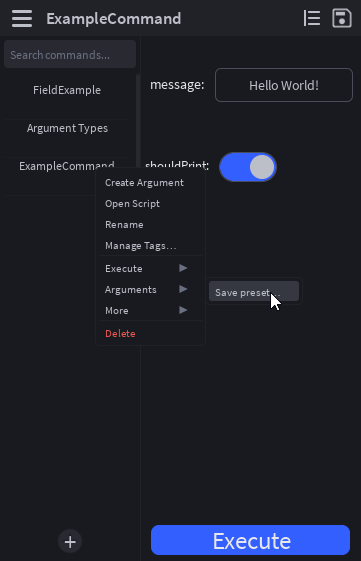
Saving a preset
Right-click the command in the sidebar → Arguments → Save preset…. Name the preset. The current argument values are captured into a JSON record on the ModuleScript's __ArgumentPresets attribute.
Saving with the same name overwrites the previous preset (after a confirmation toast).
Loading a preset
Right-click the command → Arguments → <preset name>. The preset's values are written back into the argument cards (and into the underlying Roblox attributes).
Executing with a preset directly
If you don't want to disturb the current argument values, use Execute instead:
Right-click the command → Execute → <preset name>. Runs the command with the preset's arguments, without modifying the live values shown in the args panel.
This is the right move when you have several "modes" of the same command and want to switch between them without re-typing.
Storage
Presets are stored as a JSON-encoded __ArgumentPresets attribute on the command ModuleScript. They survive plugin reloads and Studio restarts. They do not travel with the script through the cross-place library, presets are per-place.
If you need a preset to be available everywhere, the cleanest pattern is to save the command itself (which captures source + presets in your local Library, but the Library load only restores the source, presets are stripped at this layer too).
Deleting a preset
Studio doesn't ship a one-click "delete preset" UI in this build. To remove a preset:
- Open the script in the editor (click the edit-pencil icon).
- Find the
__ArgumentPresetsattribute on the script in the Properties panel (it'll be a JSON-encoded string). - Edit the JSON string and remove the key, or delete the attribute entirely to wipe all presets.
A first-class Manage presets UI is on the roadmap.